Git Made Simple: A Beginner’s Guide
What is Git?
Git is a tool that helps you track changes in your files, especially code.
Think of Git like a smart save system:
- Every time you make an important change, you save it using Git.
- You can go back to any old version anytime.
- You can work with other people without breaking each other’s work.
Git is a distributed version control system.
This means:
- Every developer has their own full copy of the project.
- No single computer controls everything.
- Everyone can work independently and later share changes.
Why Git is Used
Git is used because it makes work safe and organized.
Main reasons:
- Track who changed what and when
- Undo mistakes easily
- Work with many people on one project
- Try new ideas without breaking main code
- Keep full history forever
Without Git:
- You will make folders like
project_final,project_final2,project_final_last
With Git:
- You save versions properly and can return anytime.
Git Basics and Core Terminologies
›Repository (Repo)
A repository is your project folder that Git tracks.
It contains:
- Your files
- Hidden Git data
- Full history of changes
›Commit
A commit is a saved version of your project.
It is like taking a photo of your code.
Each commit has:
- Message
- Date and time
- Author
- Unique ID
›Branch
A branch is a separate line of work.
Example:
mainbranch = stable codefeature-login= login feature
You can:
- Work safely
- Merge later
›HEAD
HEAD means:
- Your current position
- Which commit or branch you are on
Git Working Areas
Git has three main areas:
- Working Directory – where you edit files
- Staging Area – where you prepare files
- Repository – where commits are stored
›Flow
Working Directory → Staging Area → Repository
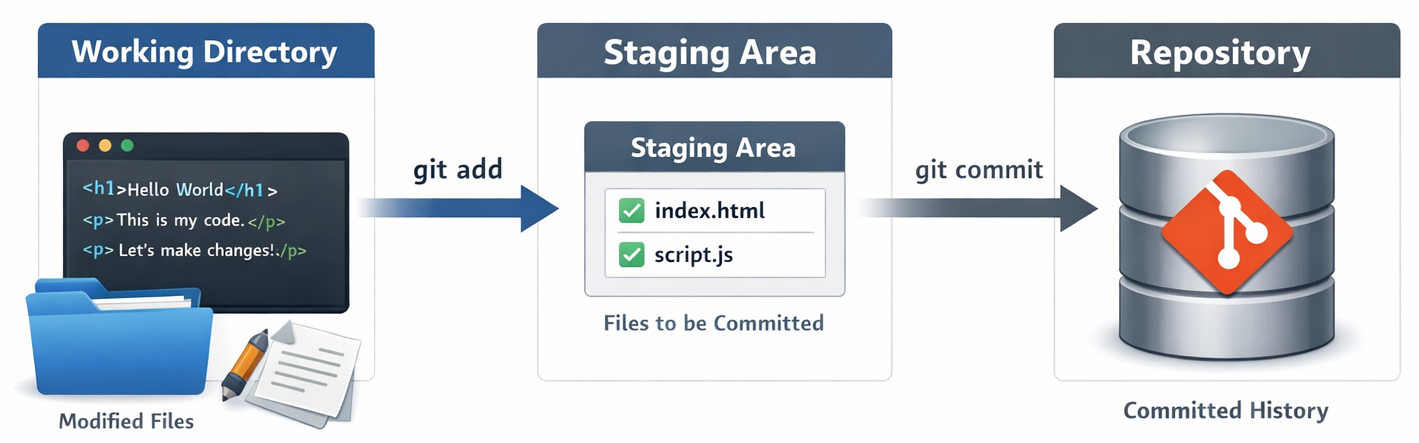
Git Working Flow
Local Repository Structure
A local repo contains:
- Your files
- A hidden
.gitfolder - All commits and branches
Commit History Flow
Commits form a chain:
Commit A → Commit B → Commit C → Commit D
Each new commit points to the previous one.
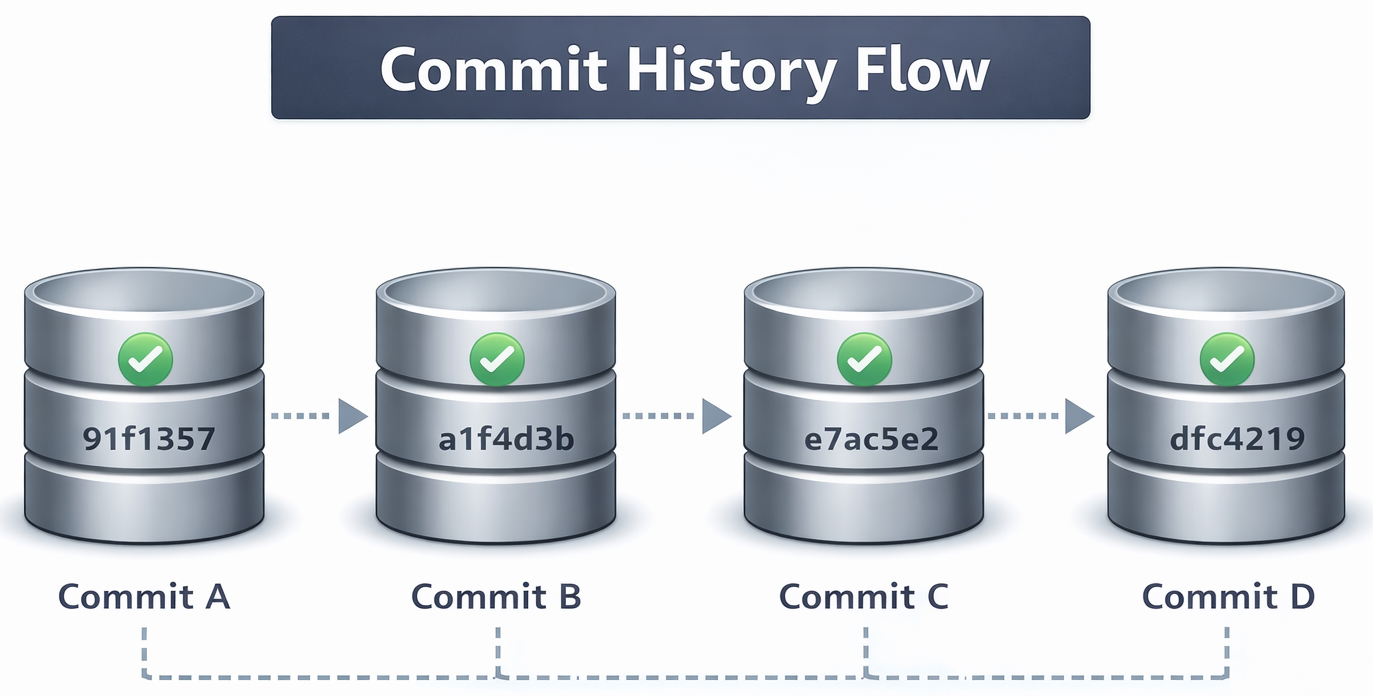
Commit History
Common Git Commands
›git init
Create a new repository.
git init›git status
Check current project state.
git status›git add
Move files to staging area.
git add file.txt
git add .›git commit
Save staged files.
git commit -m "Add login page"›git log
See commit history.
git log›git branch
Show or create branches.
git branch
git branch feature-ui›git checkout
Switch branches.
git checkout feature-ui›git merge
Merge branches.
git merge feature-uiBasic Developer Workflow Using Git
›Step 1: Create Project
mkdir myapp
cd myapp
git init›Step 2: Create Files
Create index.html
<h1>Hello World</h1>Check:
git status›Step 3: Add and Commit
git add .
git commit -m "First version of website"›Step 4: Make Changes
Edit file:
<h1>Hello Git</h1>
<p>Learning Git is easy</p>
Save:
git add .
git commit -m "Update homepage text"›Step 5: Create Feature Branch
git branch feature-about
git checkout feature-about
Create about.html
<h1>About Us</h1>Save:
git add .
git commit -m "Add about page"›Step 6: Merge to Main
git checkout main
git merge feature-about
Now your main branch has the new feature.
Simple Git Flow Summary
- Edit files
- Check:
git status - Stage:
git add - Save:
git commit - Use branches
- Merge when ready
Final Thoughts
Git is not scary.
It is just a smart way to save and manage your work.
Remember:
- Edit
- Add
- Commit
- Branch
- Merge
Practice a little, and Git becomes your project’s time machine.